How Can Studio Direct AI Filmmaking Pipelines?
3 NOV 2026
At many film studios today, different stages of production are handled across separate, disconnected platforms. Working this way makes it easy for production data and technical parameters to lose continuity at each handoff, leaving directors struggling to maintain oversight and coordination throughout the project.
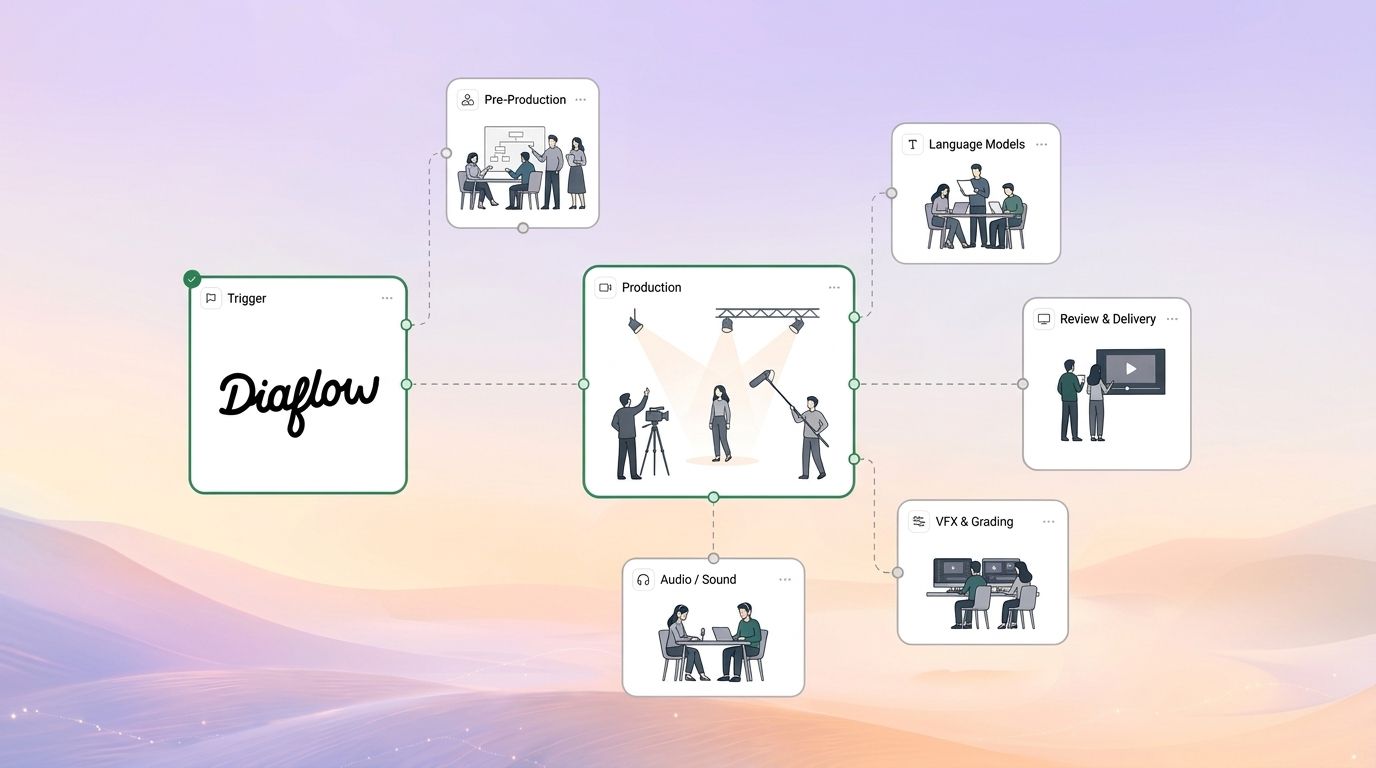
To address this disconnect, Diaflow brings the entire collaborative process onto a single visual platform through a deterministic directing pipeline. It connects data seamlessly from pre-production to post-production, giving directors precise control over information within a centralized workspace.
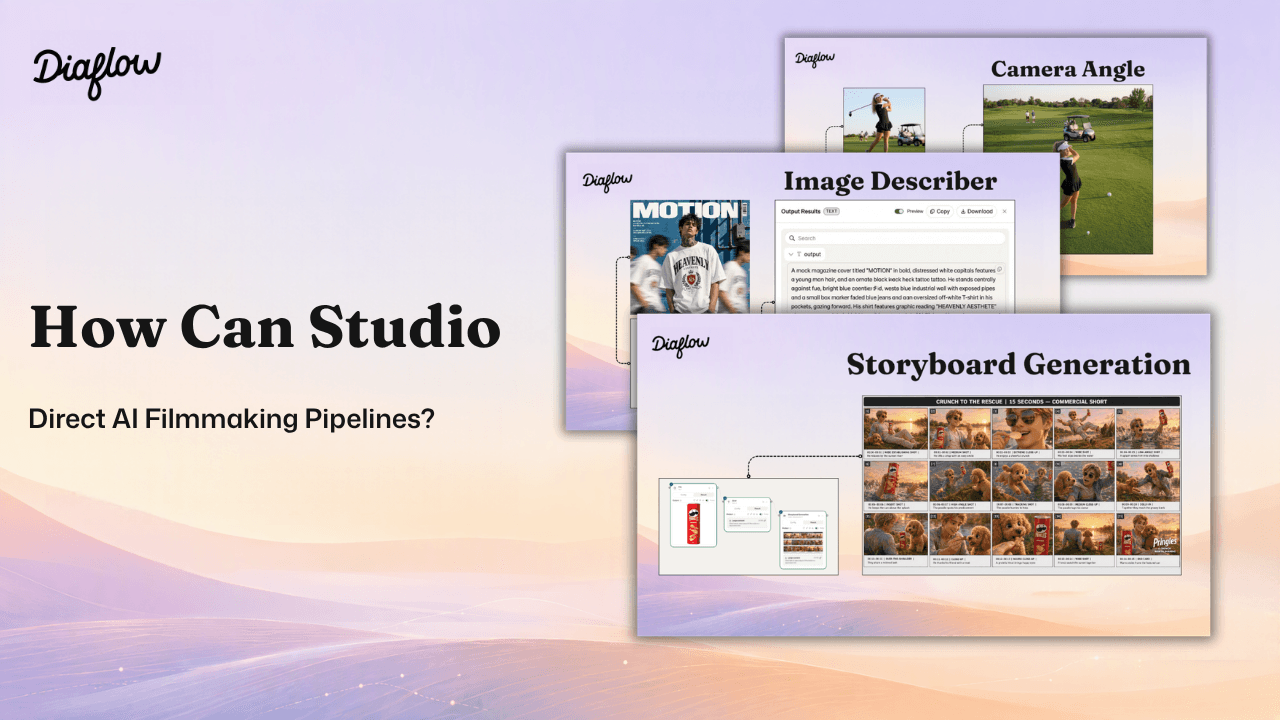
5 Key Takeaways
- Connect every stage of production: pre-production, previs, and post-production unified in one space that powers smooth workflow and seamless visual alignment.
- Eliminate prompt guesswork in pre-production: Image Describer turning approved reference stills into exhaustive prompts that carry your exact style seamlessly into downstream shot planning.
- The Storyboard review gate: Finalize framing and timing before motion rendering to save credits.
- Mini Aura as a capable assistant: Context-aware Mini Aura inspects canvas node flows to troubleshoot errors, suggest camera angles, and guide production from idea to render.
- Effortless post-production: Combine Video Describer and Trim to automatically filter and cut a B-roll footage library using timestamps.
Where Are Production Bottlenecks in Commercial Filmmaking?
When introducing generative AI into commercial video production (TVC), most studios quickly realize that standalone image or video generation tools cannot meet professional standards because of two fundamental barriers. According to user surveys conducted with Diaflow partners, this tool gap remains their biggest operational challenge.
1. Fragmentation across production stages
Disconnected, stage-specific tools break technical continuity during handoffs, making cross-departmental alignment the primary bottleneck in production.
Studios need a way to manage the entire project within a single centralized workspace, where directors and department leads can track the progress of individual tasks while maintaining an uninterrupted flow of inherited technical data from beginning to end.
2. Visual drift and the fear of reshoots
When AI is controlled through text prompts, randomness can cause facial identity, clothing, and lighting direction to change from shot to shot. This leaves studios in a difficult position: either incur the expense of returning to the location for a reshoot or burn through credits on unproductive, hit-or-miss prompts without obtaining a frame suitable for the edit.
How Does Diaflow Connect Fragmented Production Stages?
To eliminate tool fragmentation and the loss of technical parameters, Diaflow transforms the filmmaking workflow. Instead of manually transferring files between multiple standalone applications, all production data is coherently linked within one centralized workspace on Diaflow.
Rather than relying on unpredictable prompts, Diaflow provides a dedicated set of filmmaking nodes designed to address studios’ recurring challenges and concerns, putting an end to wasted credits on trial and error and the worry of having to arrange another location shoot.
A note on practical implementation:
Although working visually on Diaflow does not require programming skills, production teams still need an understand about workflow.
Receive free up to 26,000 credits for your workspace in Diaflow today! Try now!
How Are Technical Parameters Locked During Pre-production?
Image Describer locks visual continuity in pre-production by converting reference photos into detailed, production-grade prompts, eliminating guesswork across downstream nodes.
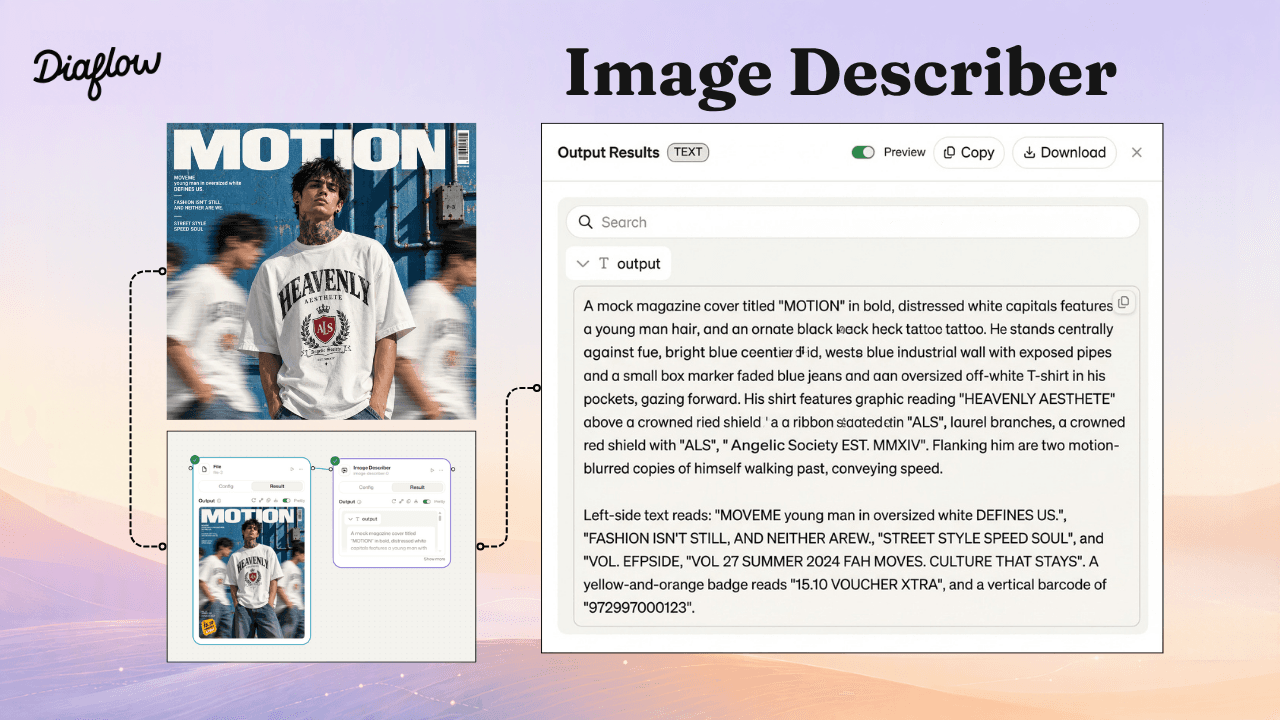
When this visual data is connected directly to Video Shot Planner alongside the narrative script, the entire shot structure takes shape. Directors no longer have to build tables manually. Every shot-from a wide establishing shot to an emotionally focused medium close-up or a detail close-up is assigned precise framing and camera movement parameters.
One of the greatest challenges directors have faced when working with AI is preventing actors from changing appearance between shots. Diaflow addresses this through Character Sheet Generation. By providing the character portrait and costume details into separate input ports, the node produces a consistent multi-angle model sheet (front, side, and profile poses) so downstream video generators maintain identical faces, hair, and clothing across different scenes.
Why use Diaflow’s Storyboard Generation node?
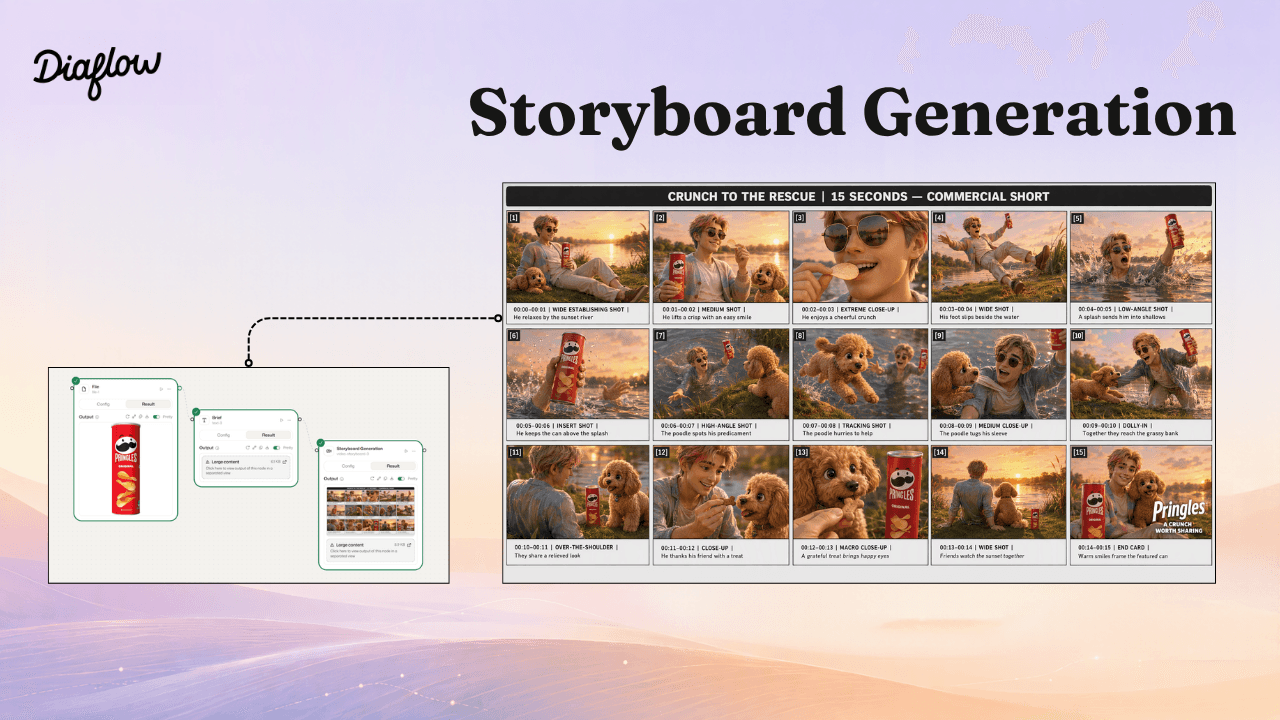
The Storyboard Generation node removes manual prompt writing entirely by converting your structured script directly into a sequential, multi-panel visual grid in one step.
Instead of painstakingly drafting individual prompts and wrestling with consistency for every single panel, the node automates visual board creation:
- Zero prompt engineering: Takes camera directives and scene descriptions straight from your script, generating keyframe panels without manual prompting.
- Instant character consistency: Plug your character sheet into the Assets port - the node locks actor features and wardrobe across every panel, automatically interpolating poses, camera angles, and any missing scene variations directly from the script.
- Ready-to-review sheet: Delivers a complete storyboard grid labeled with shot numbers and camera movements, ready for quick team and client feedback.
How to use the node on your canvas:
- Connect your script: Link the output of Video Shot Planner into the Storyboard Generation node to pass in your structured shot list.
- Attach character assets: Connect your character model sheet from Character Sheet Generation into the Assets input port.
- Generate the storyboard: Run the node to produce the multi-panel visual sheet.
Approve and route: Review static frames with your client, then send the approved compositions directly to Video Engine for motion rendering.
How Does Camera Angle Reposition 2D Packshots?
When preparing pitches or planning staging for TVC projects, production teams often receive only a single static product packshot from the brand. To develop a shot plan and communicate their staging intentions convincingly, studios may spend considerable time building 3D mockups or arranging expensive test shoots simply to find the right camera angle. With Camera Angle on Diaflow, that process changes completely.
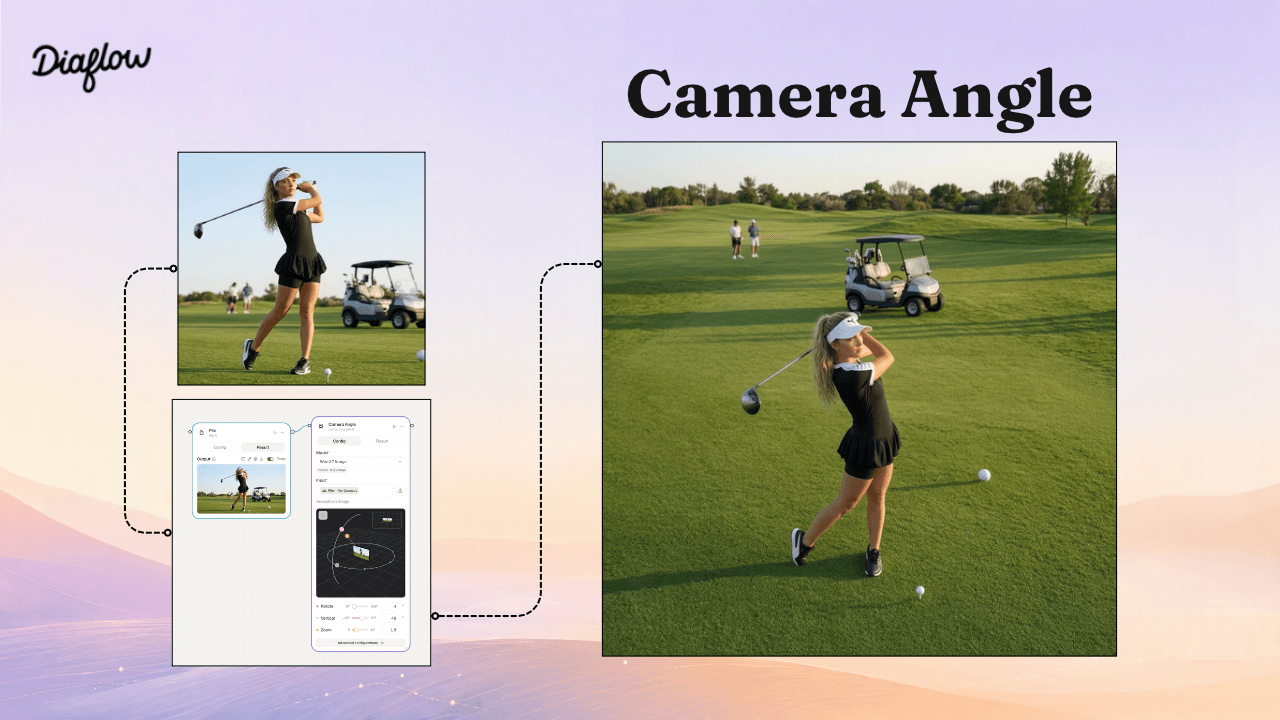
The system provides a precise three-dimensional virtual camera setup that operates directly on a still image through three coordinate controls:
- Horizontal rotation (Rotate): Freely adjust the viewing angle from 0° to 360° around the subject.
- Camera elevation (Vertical): Adjust from a −30° Low Angle looking upward to a 90° Bird’s Eye View looking straight down.
- Optical viewing distance (Zoom): Fine-tune the perspective scale from 0 to 10 to tighten or widen the field of view.
Work visually in two steps:
- Feed the original still image into the Camera Angle input port.
- Enter the desired values for Rotate (rotation around the subject), Vertical (camera elevation), and Zoom (perspective distance), then run the node to obtain a new camera angle.
From a single still image, the team can quickly create a rich set of visual references from multiple perspectives: an oblique angle that highlights the texture of the packaging, a low angle that conveys luxury, or an overhead view that captures the product’s overall shape. These multi-angle images provide a clear visual foundation for aligning the artistic direction with the client during a pitch. They also supply consistent input assets for subsequent video generation steps without introducing unnecessary trial-and-error costs.
How Can Teams Optimize Post-production Footage Workflows?
Editors can inspect, frame, and trim footage directly on the flow canvas using dedicated nodes, eliminating manual library searches and external tool switching.
1. Fine-tuning cinematic composition with the Rotate Node
To balance camera horizons or dial in a deliberate Dutch Angle - such as −12.5° to add tension to a product close-up—directors can pass rendered frames directly through the Rotate node.
Rather than bouncing out to an external graphics editor, the node provides quick visual orientation adjustments directly on canvas, allowing filmmakers to fine-tune composition balance before locking the sequence.
2. Streamlining B-roll logging and trimming in three steps
Managing extensive B-roll libraries can consume hours of manual review. Diaflow assists this logging and prep phase in three structured steps:
- Review footage pacing with Video Describer: Automatically analyze video clips to generate detailed narrative summaries, pacing notes, and shot descriptions.
- Match clips to scene requirements: Use an LLM node to compare the generated video summaries against the script breakdown, highlighting the takes that best support each scene.
- Trim handles with Trim: Specify exact in/out timestamps to remove dead frames from the head and tail, preparing clean footage selects for the final editing timeline.
How Does Mini Aura Assist Studio Directors?
If Diaflow is a modern digital film studio, Mini Aura is the diligent, perceptive production assistant available beside the director 24/7. Diaflow’s Mini Aura operates as ambient AI within the workspace. Instead of appearing in a window that blocks the view, it is pinned alongside the open canvas, allowing directors and editors to converse while continuing their work without losing track of the project context.
With its workspace context awareness, Mini Aura understands how data connects across canvas nodes. Through conversational interaction, it can guide directors through port configurations, suggest relevant camera setups, and troubleshoot flow connections without navigating away from the workspace.
(To learn more details about Aura and the new features included, you can read more in this blog: Introducing Diaflow Aura: The Next Generation of Autonomous AI Agents )
Beyond serving as a technical checkpoint, Mini Aura also acts as a knowledgeable creative assistant. Rather than navigating complex staging decisions alone, directors can discuss possible solutions with Mini Aura from choosing a camera angle that conveys a character’s isolation to adjusting lighting direction to heighten drama within the frame. As a collaborator that challenges assumptions and suggests ideas, this agent helps filmmakers move past uncertainty and make confident directing decisions while retaining full artistic control.
Having a technical editing assistant available within the workspace helps the crew maintain its creative momentum, streamline asset handling, and optimize credit consumption across the studio.
How Does Visual Directing Outperform Conventional Methods?
| Production Area | Conventional Approach | On Diaflow |
|---|---|---|
| Moodboard Analysis | Subjective descriptions using vague adjectives. | Extract exhaustive visual style, lighting, and composition prompts with the Image Describer node. |
| Pre-production & Pitching | No established basis for creating consistent visual references. | Generate visual references for casting and develop settings for sponsorship pitches. |
| Shot Planning | Create disconnected shots without carrying over contextual information. | Generate a structured Shot List with locked focal-length and shot-size parameters. |
| Character Consistency | Facial identity drifts when the camera angle changes. | Use a four-angle Turnaround sheet (0°, 45°, 90°, 180°), separating the face and accessories ports to lock the visual anchor created by the Character sheet node. |
| Script Review | Render video before seeing the result, consuming credits. | Review still images through Storyboard before generating motion. |
| Camera Angle Control | Imprecise text descriptions such as “camera panning.” | Use the Camera Angle node’s virtual rig for precise optical coordinate control: Rotate 0–360°, Vertical −30° to 90°, and Zoom distance 0–10. |
| Post-production & Error Correction | Depend on random regeneration. | Fine-tune framing with Rotate and assist workflow setups with Mini Aura |
| B-roll Library Processing | Spend hours manually reviewing footage. | Review scene pacing and actions with Video Describer, then cut handles with Trim. |
Frequently Asked Questions
Why are the face and accessories ports separated?
Separating the Character and Accessories ports allows the node to process facial likeness and wardrobe styling independently. This prevents clothing textures or accessories from bleeding into facial features or expressions when generating alternative viewing angles.
How does Camera Angle handle occluded areas?
When the camera perspective rotates toward angles not visible in the source packshot, Camera Angle synthesizes the missing perspective directly from the single still image, extrapolating surface contours and existing lighting conditions without requiring a pre-built 3D model.
How is shot-planning data integrated into editing software?
Diaflow allows teams to export structured shot breakdown data, standardized scene descriptions, and timecoded notes into tabular or text formats, providing an organized reference sheet that editorial teams can follow when cutting sequences in Premiere Pro or DaVinci Resolve.
How are the work’s legal standing and copyright protected?
Under USCO guidance, adjustments to spatial coordinates, composition, and shot planning on Diaflow provide verifiable evidence of intentional human creativity, establishing a strong legal basis for copyright in commercial work.
How is the video model lineup updated?
As a partner of leading AI developers, Diaflow integrates the latest video models as soon as they launch—such as seedance 2.5, King 4.0, Gemini 4 Argon, and Wan—helping studios keep pace with technological developments. Its open architecture separates the directing control layer from the underlying models, allowing studios to switch rendering models without disrupting the shot plan or changing their existing workflow.
What studio sizes are a good fit for Diaflow?
- Production houses and boutique creative studios, with teams of 3–15 people or more: Suitable for teams producing TVCs, commercial videos, viral clips, or pre-vis for larger projects. Teams collaborate on one platform: Wiki stores art direction and rulebooks, Table manages shot lists and progress, and Page supports scripts and visual treatments. Automation from pre-production through pre-vis helps reduce preparation time and improve the chances of winning pitches.
- Businesses with In-house Media/Creative Teams, with 5–20 internal media staff: Suitable for retail, e-commerce, and technology brands that need a steady flow of marketing videos each week or for specific campaigns. Wiki can standardize brand guidelines, Table can track campaign progress, and Page can align briefs between Marketing and Creative. The platform helps businesses produce high-quality video assets in-house without relying entirely on external agencies, reducing long-term production costs while maintaining a consistent brand identity across every frame.
How does Diaflow pricing work?
Diaflow uses a transparent pricing model based on actual credit consumption, without requiring expensive hardware investment or fixed software licenses:
- Per-task deductions: Each operation - from analyzing a reference photo with Image Describer to rendering video with partner AI models - consumes credits according to the selected model and resolution. The estimated credit requirement is clearly displayed before execution, allowing the team to control its budget for each shot.
- Monthly allowances and flexible top-ups: Production teams can subscribe to plans with monthly credit allowances or purchase additional credits as individual projects require on a pay-as-you-go basis.
- Detailed project-level cost tracking: Credit consumption is clearly allocated to individual contracts on a cost-per-project basis, helping studios and businesses estimate budgets during quoting and prevent unplanned expenses.
Ready to Upgrade Your Studio’s Filmmaking Workflow?
Bring script breakdown, character consistency, and footage prep together on a single visual canvas. Eliminate fragmented handoffs, keep visual drift under control, and direct your commercial productions with deterministic precision.
Start directing on Diaflow today - claim up to 26,000 free credits for your workspace and experience a seamless filmmaking pipeline from pre-production to final edit.